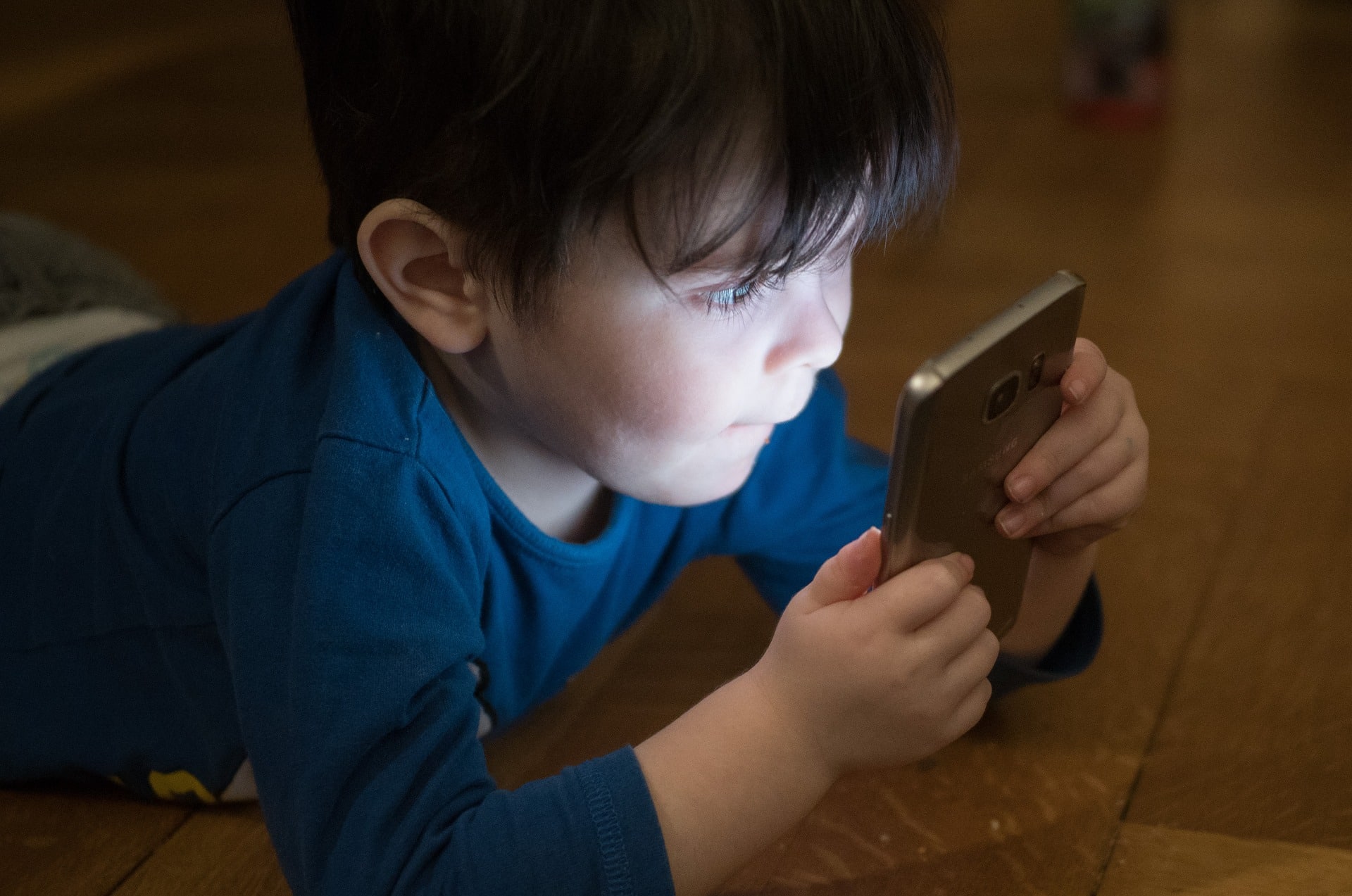
Screen devices are an integral part of most kids’ daily lives. Games are easy to access from their smartphone. They have friends sending messages throughout the day. Notifications from social media draw their attention. And online learning adds extra hours to the approximately 4 to 9 hours kids spent a day before the COVID-19 pandemic.[1] To help achieve screen sanity at your home, enjoy Dr. Bennett’s weekly coaching videos on the GetKidsInternetSafe App. While attending to sensible rules and tools for screen safety, parents cannot overlook the health cost of excessive screen use to our eyes. Visual hygiene may be defined as mindful actions taken to reduce potential harm to our visual system and to keep it working at its best.[2]
What is digital eye strain?
Computer Vision Syndrome (CVS) or Digital Eye Strain is defined by the American Optometric Association as issues related to the eye or the visual perception as a result of extended screen use. Research in this area indicates that at least 50% of computer users have experienced these symptoms which include dry eyes, blurry vision, strained eyes, and headaches.[3]
While CVS is believed to be temporary, it’s still important to err on the side of caution. Research that attempts to declare causation is a tricky area for scientists, especially when considering the many factors which may come into play such as the subject’s socioeconomic status, genetics, and third contributary variables.
What can cause digital eye strain?
Screen use over an extended period is the primary cause of digital eye strain. Here are some additional considerations:
Blinking Less
When we look at our screens, we are believed to blink around 66% less than we normally do.[4] As a result, we may feel a drying or burning sensation after an extended period of screen use.
Ergonomics
Ergonomics is a type of science that studies how to maximize healthy body positioning and movement efficiency. Healthy ergonomics can be broadly applied and specified to functions such as our vision. Some visual ergonomic factors include screen distance, brightness, and posture.
Poor ergonomics may result in digital eye strain if the screen is too bright compared to the surrounding area. And if the screen is too close, our eyes may begin to cross (a normal visual function known as convergence).
Habits to Improve Visual Hygiene
Just as we maintain oral hygiene through brushing at least twice a day, keeping good visual hygiene can avoid strain or injury. Here are a few tips on preventing digital eye strain and improving your visual hygiene:
20-20-20 Rule
The 20-20-20 Rule states that for every 20 minutes of screen use, we should spend at least 20 seconds looking at something 20 feet away. Changing focus prevents visual fatigue. This is a simple and quick task, and you can even make it more fun by playing I-Spy outside the house with your kid!
Night Mode/Red Light Mode
Night mode or Red-light mode is one of the newer options to control the type of light emitted from our screen devices. Blue light is a high-energy type of light that is most commonly emitted from screen devices. Optometrists believe that this type of light is a primary cause of eye strain.[5]
Lens manufacturers have created a protective lens to help. However, research on the benefits of blue light blocking lenses is mixed. Instead of investing in blue light blocking lenses, we can simply switch the high-energy blue light on our screen devices to a lower energy, warmer tone through the brightness or display settings on our screen devices.
Blue light also negatively impacts the production of our body’s sleep regulating hormone, melatonin. Check out our article Why Good Sleep is Critical for Child and Teen Health to explore the factors which impact our sleep, including the emission of blue light.
Maintaining Proper Distance
The American Optometric Association states that we should keep our computer screen 20-28 inches away from our eyes (or about 3/4 of an arm’s length). Additionally, the screen should be around 15-20 degrees below our eyes for an optimized screen experience.[5]
Maintaining Proper Lighting
Be particularly cognizant of how bright your screen is during the daytime versus during the nighttime. Improper lighting will lead to eye strain due to the eyes trying to accommodate the contrasting brightness. Another tip to keep in mind is to keep your screen clean so you can avoid glare from other light sources.[4]
Break Often
While the 20-20-20 rule is a great habit to keep in mind, frequent short breaks are also great to give your eyes a break.
The Pomodoro Technique is a technique for efficient studying which states that for every 25 minutes of work, you take a 5-minute break. Breaks allow you to take a stretch and admire the view outside! If you do decide to take a longer break, try relaxing outside, playing a sport, or walking around the block. The main idea here is to get away from up-close, artificial light sources and to have your eyes adjust to things further away out in the natural world.
Thanks to CSUCI intern, Avery Flower for researching Computer Vision Syndrome and Visual Hygiene, and for co-authoring this article.
I’m the mom psychologist who will help you GetKidsInternetSafe.
Most of us do not put much thought into reading, but not everybody has this privilege. Dyslexia is a cognitive disability that impacts someone’s abilities to read, write, or spell.[1] Letters that look similar and sound similar—such as n and m, w and m, and p, b, d, and q—are most frequently mixed up. To illustrate this, reading the sentence “Briana went to the park to walk her dog” may be read as “Briana wemt to the dark to malk her bog” for an individual with dyslexia. While some of us may mix these letters up occasionally, individuals with dyslexia chronically mix letters up to the point that it interferes with their daily life.
How common is dyslexia?
The DyslexiaHelp organization at the University of Michigan notes that 7 to 10% of the population have dyslexia. Individuals with dyslexia also represent around 70 to 80% of the population that have reading difficulties.[2] While dyslexia impairs an individual’s ability to read, write, or spell, this impairment does not affect one’s intelligence.
Dyslexia can lead to slow reading, poor language, messy handwriting, and a limited vocabulary. Behavioral issues such as tantrums, crying, and isolation may also manifest due to frustration. With proper treatment, impairment due to dyslexia can be improved. Children are especially adept at responding to treatment due to their remarkable ability to learn and adapt.
Assistive Technology
Assistive technology is a type of device or application designed to ease the symptoms of a disability.[3] In the case of treating symptoms of dyslexia, assistive technology has been refined throughout the years and garnered large satisfaction among users.
Scientists such as Tamik and Latif from the National University of Sciences and Technology are carrying out promising research for the development and accessibility of assistive technology for individuals with dyslexia. Putting the application they developed to the test, they found that their app helps significantly improves the writing for kids with dyslexia.[4] In a study by Draffan and colleagues looking at how assistive technology is used among 455 students with dyslexia, 90% of subjects found it helpful.[5]
Not only can assistive technology make things easier at the moment, but there can also be transfer effects which are benefits generalized to other things. A 2017 study by Lindeblad and colleagues put 35 children with dyslexia in a specialized program utilizing assistive technology applications. A year follow-up indicated that the children’s literacy increased at the same rate as their non-dyslexic peers.[6]
Maximizing Your Child’s Smartphone
Newer smartphones are becoming increasingly sophisticated and accessible for a diverse range of users. With smartphones, assistive technology is at our fingertips!
While a smartphone is easily accessible and can aid with alleviating symptoms of dyslexia, we at GKIS recommend that you consult with a school or private disability program prior to app adoption. Specialized programs will not only help you assess the severity of the learning disability, but they often give you access to specially designed tools that are straightforward and multifunctional.
Here are few steps on optimizing your kid’s smartphone experience:
Text-to-Speech
To have your smartphone read to you, simply highlight a word, sentence, or the entire page. To set this up on your iPhone, go to Settings -> Accessibility -> Spoken Content, then turn on the speech selection. For Android phones, download the Android Accessibility Suite by Google LLC, then go to Settings -> Accessibility -> Installed Services, then turn on Select to Speak.
Speech-to-Text
Simply, dictation is defined as translating spoken word into text. While there are specific disability devices that offer this, the latest smartphones are now equipped for dictation. Click here to learn how to use dictation for iPhone. Click here to learn how to use dictation for Android.
Recording
Recording devices have proven as useful aids for individuals with dyslexia. Not only will they be able to reference the class discussion with full detail, but they can also feel at ease now that they can write notes at their own pace. To access the Voice Memos app quickly on iPhone, go to Settings -> Control Center, then click the green plus button to add the shortcut to the Control Center. On Android, the built-in app “Voice Recorder” is located in the App drawer.
Scanning and Reading
Scanning and reading pens are often distributed through disability services. However, many smartphones are now able to do this. With the application Prizmo, you can scan a typed document which will then translate into text. From here, you can use the text-to-speech functions on your smartphone to have it read out loud to you.
Text Display
With an iPhone, you can go to Settings -> Accessibility -> Display & Text, and from here, you can turn on Bold Text. From this same page, you can also go to “Larger Text” and play around with the sizes to fit one that works best for your child. On Androids, you can go to Settings -> Accessibility -> Font Size, and play with the options from here.
Note: Due to the wide range of Android devices, the provided Android settings may be accessed differently depending on the version.
The Internet is host to an endless stream of potential sources that can help your child, but it is important to be careful of any potential marketing ploys that are from unverified sources or people without credentials. To help provide your child and yourself with a keen-eye on spotting scams, check out our How to Spot Marketing supplement that is the perfect addition to your free Connected Family Agreement.
Thanks to CSUCI intern, Avery Flower for researching assistive technology and dyslexia, and for co-authoring this article.
I’m the mom psychologist who will help you GetKidsInternetSafe.
[1] Azorín, E. I., Martin-Lobo, P., Vergara-Moragues, E., & Calvo, A. (2019). Profile and neuropsychological differences in adolescent students with and without dyslexia. Revista Latinoamericana de Psicología, 51(2), 83–92.
[4] Tariq, R., & Latif, S. (2016). A mobile application to improve learning performance of dyslexic children with writing difficulties. Journal of Educational Technology & Society, 19(4), 151–166.
[5] Draffan, E. A., Evans, D. G., & Blenkhorn, P. (2007). Use of assistive technology by students with dyslexia in post-secondary education. Disability and Rehabilitation: Assistive Technology, 2(2), 105–116. https://doi-org.ezproxy.csuci.edu/10.1080/17483100601178492
[6] Lindeblad, E., Nilsson, S., Gustafson, S., & Svensson, I. (2017). Assistive technology as reading interventions for children with reading impairments with a one-year follow-up. Disability and Rehabilitation: Assistive Technology, 12(7), 713–724. https://doi-org.ezproxy.csuci.edu/10.1080/17483107.2016.1253116
With social media and public servers for games, your child is likely to come across many different types of people. Just like in real life (IRL), they may come to be great friends. There is concern—and for good reason—if this is safe. A “catfish” is a term commonly used in popular culture to refer to someone who presents themself online to be someone or something that they are not. In our GKIS article “What You Need to Know About Online Catfishing,” we covered information about the rise of the term catfish, the psychology behind it, and certain red flags. In this article, we will cover how to best recognize catfishing and how your child can more safely meet an online friend once you, as the parent or guardian, have determined it is safe.
The Benefits of Making Friends Online
The internet displays a diverse range of people from many different cultures, ethnicities, identities, and lifestyles. Exposure to people different than themselves can be a great learning opportunity and help your child develop empathy and a greater perspective of the world. Dr. Tracy Bennett, Screen Safety Expert and Founder of GetKidsInternetSafe offers weekly parent and family coaching to help parents optimize the benefits of screen tech while minimizing risk. To learn more about her coaching videos, check out the GetKidsInternetSafe App. Sign up now and the first 30 days are free!
For kids who may be of a marginalized community themselves, like those who identify as LGBTQ+ for example, online contacts can be a lifesaver. Not only can kids have fun with their online friends who share similar interests and values, these friendships may also provide a sense of understanding, bonding, and representation.
In a 2014 study by Van Zalk and colleagues, shy adolescent participants who had online friends reported fewer depressive symptoms than those who were friendless.[1] Also, they found that having online friends didn’t distract the subjects from making IRL friends. Instead, online friends improved real-life friendships. This suggests that online friendships may boost self-esteem and social skills, so kids gain the confidence to seek friends offline too.
Making friends online may also be easier and more realistic for some kids, especially if they have trouble approaching new peers in real life. Further, if your child feels outcasted, they might search for an online community with or without your permission. So, preparing your child for safer online exploration may be your best option.
My Catfish Story
I’m a 23-year-old CSUCI intern for Dr. Bennett. In 2013, I joined an online friend group from a public Minecraft server. We would regularly participate in Skype group calls to play. All of us except one person—who I will call Sam—would regularly show our faces on video camera. Because we often saw each other, we felt we knew each other. But Sam refused to show himself on camera. Instead, he led us to believe that he was who he said he was by occasionally updating his profile picture.
Sam was really handsome and he eventually started dating one of the girls in our friend group. They tried meeting a few times, but something always came up where Sam had to cancel. We were in awe of his skills in the game and he gave us some assurance by going on camera although it was in a dark room.
Over a year into our friendship, Sam accidentally let the camera slip to reveal his face. Although it was a relief to see that we were, in fact, talking to someone our age, we were unsettled that the photos he was using were not him. Imagine the ways Sam could have been dangerous for us in slightly different circumstances.
How to Prevent Being a Victim of Catfishing
Verify Identity Through Social Media History
It is rare for a person to not have a digital footprint these days. However, with kids – they are often new users. If your child’s new friend does have social media, be suspicious if all their profiles are new.
Red flags for catfishing on Instagram might be if the person’s photos were all posted recently, if they are not tagged in any photos, or if the photos they are tagged in are from new accounts or accounts with under 30 followers.
To determine if a Snapchat account is new, look at the person’s Snap Score. A Snap Score is a feature shown on a Snapchat friend’s profile that displays the amount of live Snapchats the friend has received and sent. A Snap Score lower than 100 could indicate that the online friend recently created their account.
Other Snapchat Tricks
Snapchat offers a few features in addition to video calling. For example, you can send pictures and videos that have just been taken. One way to game this exchange is for the catfish to use their phone to take live pictures of preexisting pictures from another device.
A good way to challenge this deceptive catfish trick is to insist that the online friend send a personalized video that mentions your child’s name or a specific activity of your choosing. A few years ago, sending a selfie holding a sign with a name would have been satisfactory. But now with easily accessible editing software, written messages on paper or signs can be altered.
Opt for Video Chatting
Live video chatting can take place in many different forms through platforms like FaceTime, Skype, Facebook, or Zoom. We at GKIS especially like Facebook’s Messenger Kids. Dr. B is on Facebook’s Youth Advisory Team and has enjoyed having a part in its development from the beginning! She says she loves Messenger Kids because it doesn’t expose kids to ads and is the walled garden with parent transparency we’ve all been hoping for. Live interaction between two people makes it difficult to catfish. Even if the person tries to recycle prerecorded media in an attempt to appear live, it won’t look authentic because live chat conversation typically requires personal response.
Meet in Public
Unfortunately, there is no way to be 100% certain until you meet the friend in person. With deep fake technology, even personalized messages can be created.
If you’ve vetted your child’s friends online and you feel it is time for them to meet, meeting in public with your supervision is a good first option.
Meet their Parent(s)
Meeting the friend’s family can also help develop confidence in supporting your child’s new friendship. That way future plans can be run through the parents first.
Have Fun
Most importantly, have fun! Your child may have been waiting for months to meet their friend and now they finally can. You can also take comfort in the fact that you helped your child bring their newfound virtual friendship into real life.
Social Media Readiness Course
As kids get older, they must demonstrate knowledge, capability, and resilience to gain independence. We recommend our GKIS Social Media Readiness Course to help improve your tween’s or teen’s online experience by teaching the potential risks on social media and providing them with emotional wellness tools. As your teen works through the course, there are mastery quizzes at the end of each module so you can take track their knowledge-build course.
Thanks to CSUCI intern, Avery Flower for researching the pros and cons of creating friends online and co-authoring this article.
I’m the mom psychologist who will help you GetKidsInternetSafe.
Onward to More Awesome Parenting,
Tracy S. Bennett, Ph.D.
Mom, Clinical Psychologist, CSUCI Adjunct Faculty
[2]Van Zalk, M. H. W., Van Zalk, N., Kerr, M., & Stattin, H. (2014). Influences between online‐exclusive, conjoint and offline‐exclusive friendship networks: The moderating role of shyness. European Journal of Personality, 28(2), 134–146. https://doi-org.summit.csuci.edu/10.1002/per.1895